Your logo is the one element that appears on every printed piece, so when it prints wrong, everything looks wrong. The usual culprits are simple: a low-resolution logo that turns blurry when enlarged, or a logo with a white box behind it that should have been transparent. Both come down to sending the wrong file. This guide explains which logo file to send and why. It is part of our complete event branding guide.
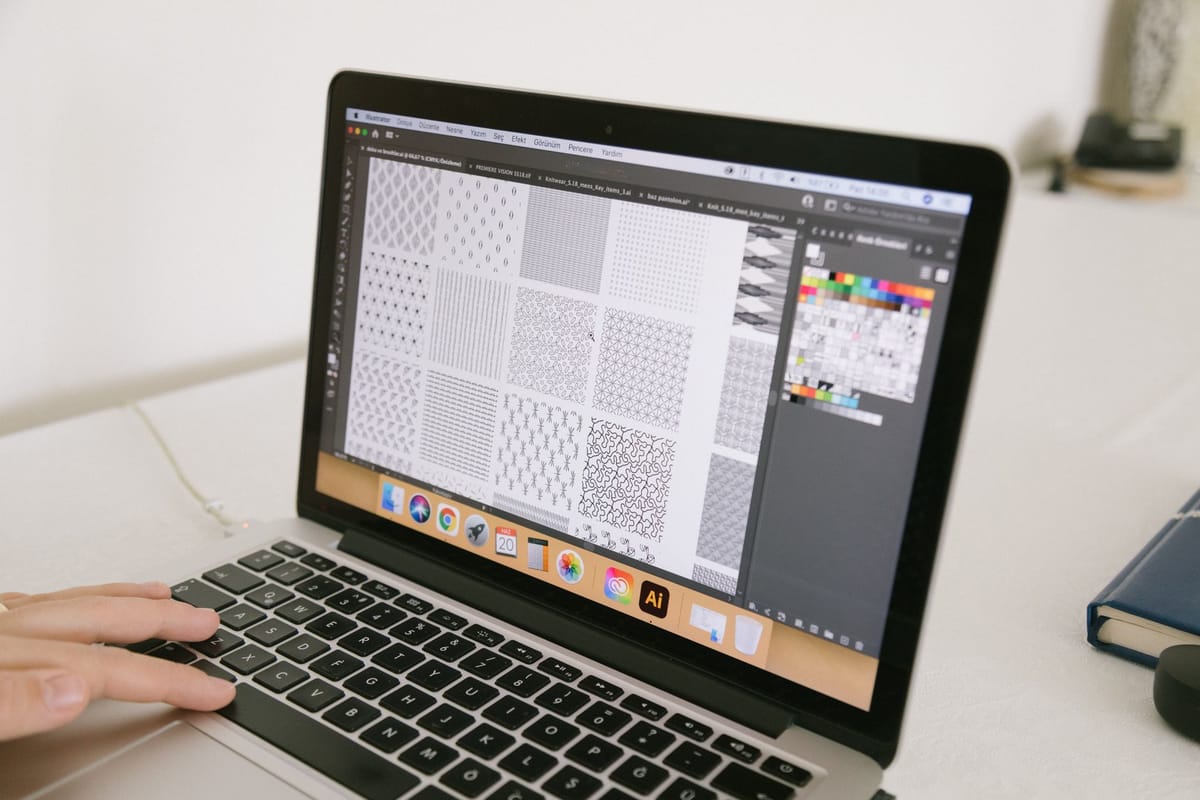
Vector vs raster — the key distinction
There are two kinds of logo file:
- Vector (AI, EPS, SVG, vector PDF) — made of mathematical shapes. It scales to any size with no loss, so the same file prints crisp on a business card or a backdrop. This is what you want for print.
- Raster (PNG, JPG, GIF) — made of pixels. It has a fixed resolution and goes blurry or blocky when enlarged past it.
For a logo, always send vector if you have it. A vector logo is resolution-independent — one file works at every size you will ever print.
What to send, in order of preference
- Vector PDF, AI, EPS or SVG — the ideal. Crisp at any size.
- A high-resolution PNG with transparency — acceptable if no vector exists, but only if it is large enough (see image resolution for print).
- A JPG — last resort. JPGs cannot be transparent and often have compression artefacts. Avoid for logos.
If you only have a small JPG or a logo grabbed from a website, ask your designer to rebuild it as vector before a big print run — it is worth it.
Transparency and the white box
A logo for print usually needs a transparent background so it sits cleanly on any colour. JPG cannot do this — it always has a solid background. Use a vector file or a transparent PNG so your logo does not arrive with a white rectangle around it on a coloured banner or sticker.
Colour and variants
Send your logo set up for print:
- A version in your brand colours specified in CMYK or Pantone (see brand colour consistency).
- A reversed (white) version for dark backgrounds — printers cannot reliably "just make it white".
- A single-colour version for cases where full colour will not work.
Having these ready means every piece gets the right logo without last-minute scrambling. For the rest of the file setup, see how to make a print-ready PDF.
Frequently asked questions
What logo file format is best for printing? Vector — PDF, AI, EPS or SVG. It scales to any size with no loss, so the same file prints crisp on a card or a backdrop. Send vector whenever you have it.
Why does my logo print blurry? It is a raster file (PNG/JPG) being enlarged past its resolution. Send a vector file instead, or a PNG that is large enough for the print size.
Why does my logo have a white box around it? It is a JPG, which can't be transparent. Use a vector file or a transparent PNG so the logo sits cleanly on coloured backgrounds.
What logo versions should I keep ready? A full-colour version (CMYK/Pantone), a reversed white version for dark backgrounds, and a single-colour version — so every print piece gets the right logo. See the product range.