The fastest way to delay a print job is to send a file that needs fixing. Get five things right — bleed, safe area, resolution, colour and the file itself — and your artwork goes straight to press. This guide walks through each, and sits under our large-format printing guide; the full per-product detail lives on our output specs page.
1. Bleed
Bleed is extra background extended past the trim line, so a slight cut never leaves a white edge. Large format usually wants more than print's standard 3mm — check the spec for your product, whether it is a banner, a foamboard print or a sticker. Extend the background, not the important content, into the bleed.
2. Safe area
The safe area is the margin inside the trim where nothing important should sit. Keep logos and text 15–20mm inside the edges for most large format, so a slight trim variation never clips them. On a roll-up banner, also keep content out of the bottom 8–10cm that disappears into the base.
3. Resolution at final size
Large format is viewed from a distance, so 100–150 DPI at the finished size is plenty — but it must be at size, not a small image stretched up. A logo grabbed from a website looks fine on screen and pixelated at two metres wide. Vector logos stay crisp at any scale; export photos at their full printed dimensions.
4. Colour mode
Supply CMYK artwork, because that is how it prints. Bright RGB blues and greens shift on press, so a colour that glowed on screen can disappoint in print. Avoid pure 100% black for large fills — a rich black (around C40 M30 Y30 K100) looks deeper and more even. Include Pantone references where brand colour is critical.
5. The file itself
Send a flattened, print-ready PDF with fonts embedded or outlined and images at full resolution. One clean PDF avoids the back-and-forth that delays a job, and means the same file re-prints whenever you need it. Name the file clearly with the product and size, so there is no confusion about what prints.
Vector vs raster
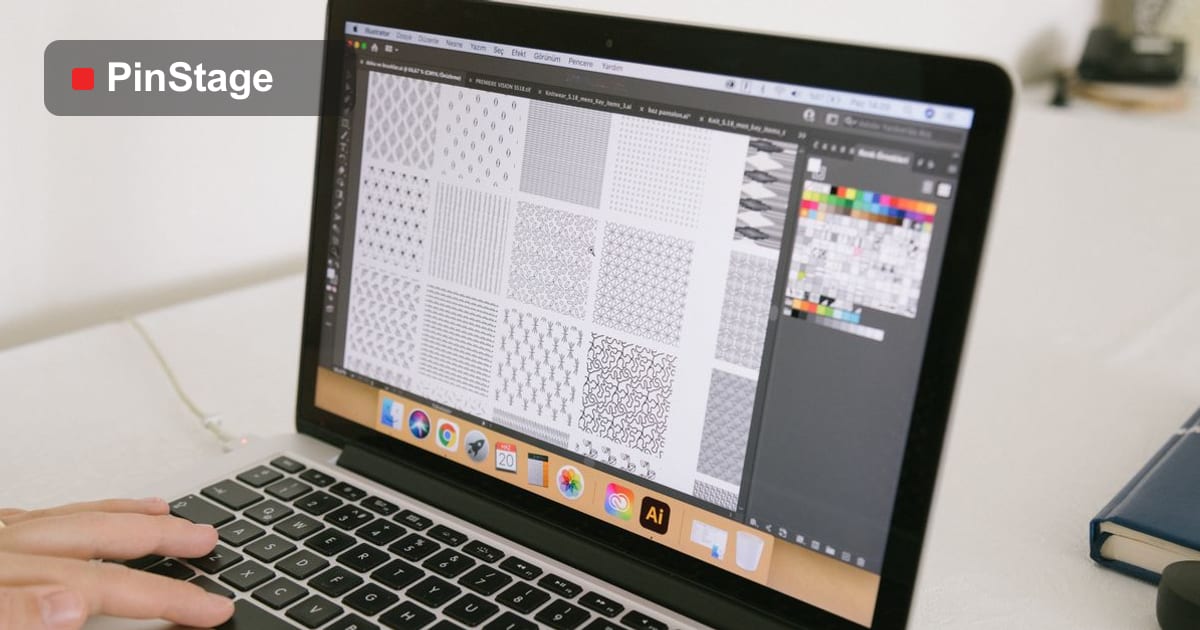
Two kinds of artwork behave very differently at size. Vector graphics — logos, type and shapes drawn in software like Illustrator — stay razor-sharp at any scale, so they are ideal for large format. Raster images — photographs and anything made of pixels — have a fixed resolution and soften when enlarged. Build with vector where you can, and supply raster images at full printed size.
Fonts: embed or outline
Fonts cause more printing surprises than almost anything else. If the printer does not have your exact font, the text reflows or substitutes, changing your layout. Avoid this by embedding fonts in the PDF or, better still, converting text to outlines (curves) so it prints exactly as designed and needs no font at all. Outline a copy and keep an editable original for future changes.
Sourcing images at the right resolution
A design is only as sharp as its weakest image. Use the highest-resolution version of every photo and logo you can, sized to the final print, not a thumbnail scaled up. Avoid tiny web images, screenshots and heavily compressed files; they look acceptable on screen and disappointing at size. When in doubt, ask the source for a print-resolution file before you build.
A pre-flight checklist
Before you submit, run a quick check:
- Bleed added on all sides.
- Text and logos inside the safe area (and above any roll-up base).
- Images sharp at the final printed size.
- CMYK colour, rich black for large fills.
- Fonts embedded or outlined.
- One clean, clearly named print-ready PDF.
Common file mistakes
- No bleed. A slight cut leaves a white sliver along the edge.
- Low-resolution images. A web logo looks pixelated at full size.
- RGB colour. Bright screen colours shift in CMYK printing.
- Live fonts not embedded. Text reflows or substitutes on the printer's system.
- Content in the trim or base zone. It gets cut or lost in a hem or cassette.
What we check before printing
A good supplier pre-flights your file and flags problems before anything is printed a hundred times over — low resolution, missing bleed, RGB colour, fonts that are not embedded. Treat that check as a safety net, not a substitute for setting the file up right: a clean file goes through faster, prints as you intended, and avoids the delay of a fix-and-resend.
Setting up your document
Start the document at the right size and settings and the rest follows. Set the canvas to the final dimensions (or a clean fraction — see below), add the required bleed, place guides for the safe area, and work in CMYK from the start rather than converting at the end. Setting these up before you design saves the painful rework of a file built at the wrong size or in the wrong colour mode.
Scale: full size vs a fraction
Very large banners do not need a document the full physical size, which would be unwieldy. A common approach is to design at a clean fraction — say half or a tenth — and set the resolution proportionally higher so it still prints at 100–150 DPI at full size. Whatever scale you choose, keep it consistent and tell your supplier, so there is no doubt about the final printed dimensions.
Handling large file sizes
Large-format files can get big, especially with high-resolution photos. Flatten the artwork, compress images sensibly without dropping below print resolution, and export a PDF rather than sending raw working files. If the file is too large to email, use a file-transfer link. A tidy, right-sized PDF is faster to check and to print than a huge layered working file.
Spot colours and special finishes
Standard print is four-colour CMYK, but some jobs need more. A spot (Pantone) colour guarantees an exact brand shade that CMYK cannot quite hit — useful for a precise logo colour. Special finishes like white ink on clear material, or a cut line for a die-cut shape, need to be set up as separate, named layers so the printer knows what is print and what is instruction. Flag these when you order.
Templates and supplied guides
Where a product has a fixed shape or fold — a sticker die-cut, a folded box, a pop-up panel — design onto the supplied template rather than guessing the dimensions. The template shows the trim, the bleed, the safe area and any fold or seam, so your artwork lines up with the physical product. Ask for the template before you start; it is far easier than re-fitting a finished design.
Proofing before the full run
For anything important — a brand colour, a large run, a flagship display — confirm a proof before committing. A digital proof checks layout and content; a printed proof or material sample checks colour and finish at size. A few days spent proofing is far cheaper than reprinting a whole batch that came out the wrong shade, and it is the last safety net before your file is printed in quantity.
Keeping a master file
A print job is rarely a one-off. Promotions repeat, stock wears, and campaigns refresh, so keep an organised master file for every piece: the editable original, an outlined print-ready PDF, the exact size and material, and the supplier and product. With that on hand, a reorder or a small change is a quick edit and resend rather than rebuilding from scratch. Treat your print files as an asset library, not disposable one-offs, and every future order is faster.
Frequently asked questions
What resolution do I need? 100–150 DPI at the final printed size — not a small image stretched up. Vector logos stay crisp at any scale.
Why does my blue look purple? Bright RGB blues shift in CMYK printing. Supply CMYK artwork and a Pantone reference for critical brand colour.
Should I outline my fonts? Yes — outlining text guarantees it prints exactly as designed, with no risk of font substitution.
What file format should I send? A flattened, print-ready PDF with fonts embedded or outlined and images at full resolution. Avoid sending raw working files.
What is rich black? A deeper black mixed from CMYK (around C40 M30 Y30 K100) rather than 100% K alone; it looks more even on large fills.
Can you check my file before printing? A good supplier pre-flights every file for resolution, bleed, colour and fonts — but a correctly set-up file still goes through faster.
How do I avoid white edges on my print? Add bleed — extra background extended past the trim line — so a slight cut never leaves a white sliver along the edge of the finished piece.
See the per-product requirements on output specs, the roll-up specifics in the roll-up size guide, or browse all products to configure and order.